 how-to
How to Integrate AI with Google Classroom
Table of Contents
- What You'll Need Before Integrating AI with Google Classroom
- Step-by-Step: How to Integrate AI with Google Classroom
- Best AI Tools for Teachers to Use with Google Classroom
- How to Use AI for Lesson Planning Inside Google Classroom
- Ethical Use of AI in Education: What Every Teacher Should Know
- Common Mistakes to Avoid During AI Integration
- Post-Integration: Measuring Impact on Learning Outcomes
- Conclusion
Last Updated: August 16, 2026
Getting AI tools to work inside Google Classroom sounds straightforward until you actually try it. The admin permissions, the authentication layers, the LTI configuration, most guides skip the hard parts and leave teachers stuck at step two. This guide from Classroom Writer walks through the full process: from pre-flight checks to post-integration assessment, including the ethical and accessibility considerations most tutorials ignore entirely.
AI integration with Google Classroom is the process of connecting external AI platforms to your existing Classroom environment so teachers can automate administrative tasks, personalise learning experiences, and deliver AI-powered feedback within a familiar digital classroom workflow.
What You'll Need Before Integrating AI with Google Classroom
Preparation determines whether your integration goes live in an afternoon or drags on for weeks.
Access requirements:
- Google Workspace for Education account (standard Gmail accounts do not support third-party integrations at the admin level)
- Google Admin Console access with super admin or delegated admin privileges
- An account with your chosen AI platform that supports LTI 1.3 or API-based integration
- IT coordinator involvement if your school operates a managed Chromebook or device policy
Technical prerequisites:
- Confirm your school's domain is verified in Google Admin Console
- Check that third-party app access is not blanket-blocked by your current admin policy
- Identify which student data your AI platform will process
Pedagogical groundwork:
- Define what you want AI to do: automated grading, lesson planning support, real-time feedback, or differentiated instruction
- Communicate the planned change to teachers before rollout
According to Google for Education's official Workspace documentation, educational institutions must complete a data processing agreement with any third-party educational software before student data can be shared. Do not skip this step.
Step-by-Step: How to Integrate AI with Google Classroom
Integrating AI with Google Classroom follows a four-step sequence. Rushing any step creates authentication failures that are time-consuming to diagnose later.

Step 1: Enable Third-Party Integrations in Google Admin Console
Log into your Google Admin Console at admin.google.com. Navigate to Apps > Additional Google Services or Apps > Google Workspace Marketplace apps.
For non-Marketplace AI tools, go to Security > Access and data controls > API controls. Under "App access control," configure trust settings for the specific client ID provided by your AI platform. Set the trust level to "Trusted" for your school's organisational unit.
Step 2: Connect Your AI Platform via API or LTI
LTI 1.3 is the current standard for connecting educational software to a learning management system. Use 1.3 wherever available, it provides stronger security through JSON Web Tokens and removes the need for shared secrets.
To configure LTI in Google Classroom:
- Obtain the LTI 1.3 credentials from your AI platform: Client ID, Deployment ID, Platform URL, and Key Set URL
- In Google Admin Console, navigate to Apps > Additional Google Services > Learning Management System
- Enter the credentials provided by your AI platform
- Save and confirm the connection status shows as "Active"
For API-based integrations, your AI platform will provide an API key and endpoint documentation. Ensure the API scopes match the data your tool actually needs.
Step 3: Configure User Authentication and Classroom Access
The most reliable approach is Single Sign-On via Google OAuth 2.0, which lets students and teachers access the AI platform using their existing Google credentials. This eliminates password friction and keeps access management centralised.
In your AI platform's admin settings, enable "Sign in with Google" and map your school's Google Workspace domain. Set role-based access so teachers have configuration rights that students do not. Confirm that student accounts are provisioned automatically when they first log in.
Test authentication with a pilot group of five to ten accounts before school-wide rollout. Confirm that class rosters sync correctly and that the AI platform reflects current enrolment without manual updates.
Step 4: Set Up Assignments and Assessment Workflows
Configure how assignments flow between Google Classroom and your AI platform:
- Teacher creates an assignment in Google Classroom
- Assignment links to the AI tool via an embedded LTI link or external URL
- Students complete the task inside the AI platform
- Results return to Google Classroom gradebook via LTI Advantage
Automated grading settings should be reviewed carefully before enabling. Configure the workflow so AI outputs are visible to teachers before grades are posted to students.
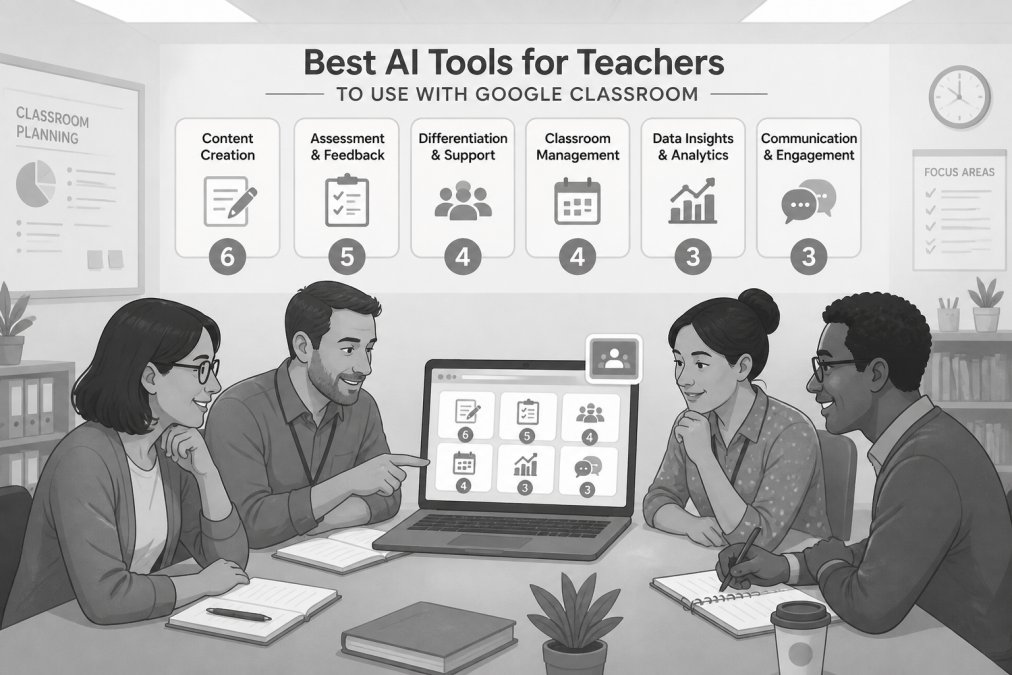
Best AI Tools for Teachers to Use with Google Classroom
The best AI tools integrate directly with Google Classroom's assignment and gradebook infrastructure, rather than operating as separate platforms teachers must manage in parallel.
| Tool Type | Primary Use | Google Classroom Integration Method | Best For |
|---|---|---|---|
| AI writing and assessment platforms | Assignment creation, academic integrity, structured feedback | LTI 1.3 or direct API | Structured written assessments |
| Generative AI assistants | Lesson planning, content drafting, differentiated materials | External link or add-on | Teacher productivity |
| Adaptive learning platforms | Self-directed learning, personalised pathways | LTI 1.3 | Maths, reading, language |
Classroom Writer is purpose-built for this workflow. It provides focused digital writing and assessment spaces where teachers create structured assignments and students complete them in a controlled environment. Critically, it keeps the teacher in control of what AI access students have during an assessment. For schools where academic integrity is a priority, this distinction matters.
The platform supports a familiar workflow for schools already using Google Classroom, so teachers are not learning a new system from scratch. Assignments created in Classroom Writer connect to Classroom's gradebook, and the review process is consolidated in one place.
How to Use AI for Lesson Planning Inside Google Classroom
AI for lesson planning works best when teachers treat it as a drafting layer, not a final output.
A straightforward approach:
- Define the learning outcome first. Write one sentence describing what students should be able to do by the end of the lesson.
- Generate a lesson structure. Use a generative AI assistant to produce a draft lesson outline aligned to your curriculum framework.
- Create differentiated materials. Prompt the AI to produce three versions of the same task at different complexity levels.
- Import materials into Google Classroom. Paste or upload the AI-generated content into a Classroom assignment, Google Doc, or Slides deck.
- Set up AI-powered feedback loops. If your AI platform is integrated via LTI, configure it to provide real-time feedback on student drafts before final submission.
The ISTE Standards for Educators provide a useful pedagogical framework for deciding when AI assistance enhances learning outcomes versus when it substitutes for the thinking students need to do themselves.
Ethical Use of AI in Education: What Every Teacher Should Know
Ethical use of AI in education means being transparent with students about when and how AI is used, maintaining teacher authority over assessment decisions, and actively monitoring for bias in AI-generated content and feedback.
AI systems trained on large text datasets reflect the biases present in that data. When those systems are used to generate lesson content or assess student writing, those biases can affect educational outcomes in ways that are not immediately visible.
Addressing AI Bias and Accessibility in the Digital Classroom
AI bias in education manifests in two main ways: content bias, where AI-generated materials reflect cultural or linguistic assumptions that disadvantage some students; and assessment bias, where automated grading tools score certain writing styles or dialects differently.
Practical steps to address both:
- Audit AI-generated content before distributing it to students. Review for cultural assumptions, gendered language, and examples that may not reflect your student population.
- Do not use AI-generated scores as final grades without teacher review.
- Ensure accessibility compliance. AI-powered tools must meet WCAG 2.2 accessibility guidelines for students with disabilities.
- Include students in the conversation. Explaining to students how AI works, where it can be wrong, and why human review matters builds critical thinking alongside digital literacy.
Schools with English language learners or students who use non-standard dialects should test AI feedback tools with representative student writing samples before full deployment.
Common Mistakes to Avoid During AI Integration
Skipping the data privacy review. Connecting an AI platform to Google Classroom means student data will be processed by a third party. Check your jurisdiction's student data protection requirements before any data flows.
Rolling out without a pilot. Run a two-week pilot with one class or one teacher before scaling to avoid a support crisis.
Granting excessive API permissions. Only authorise the data scopes your AI platform actually needs.
Ignoring teacher buy-in. Brief, practical training sessions before launch matter more than detailed documentation after.
Assuming the AI is neutral. Treating AI-generated feedback as objective removes the teacher's professional judgement from the process.
Forgetting to test the student experience. Log in as a student account and complete a test assignment end-to-end before launch day.
Post-Integration: Measuring Impact on Learning Outcomes
Post-integration assessment determines whether the investment was worthwhile.
Metrics worth tracking:
| Metric | What It Measures | How to Collect |
|---|---|---|
| Assignment completion rate | Student engagement with AI-assisted tasks vs. traditional | Google Classroom gradebook |
| Time to feedback | Teacher time from submission to grade returned | Platform analytics or manual log |
| Revision rate | Whether students act on AI feedback | Submission version history |
| Teacher preparation time | Reduction in lesson planning hours | Teacher self-report survey |
| Assessment consistency | Alignment between AI-suggested scores and teacher grades | Side-by-side comparison sample |
Compare these metrics against a pre-integration baseline. A common finding: AI-powered feedback increases revision rates because students receive feedback faster and more frequently than a teacher can provide manually.
Revisit your integration setup every term. AI platforms update frequently, and a configuration that worked in August may behave differently by January. Schedule a quarterly review of authentication settings, data permissions, and teacher feedback.
Bringing AI into Google Classroom creates real opportunities for personalised learning, faster feedback cycles, and more structured assessment delivery. The challenge is doing it in a way that keeps teachers in control and students' data protected. Classroom Writer is built for exactly this context: it provides focused writing and assessment spaces where teachers define the content, control the AI access students receive, and review submissions through a consolidated workflow. The platform integrates with Google Classroom without requiring teachers to learn an entirely new system. Start free and see how a structured assessment environment changes the review process.
Frequently Asked Questions
Can teachers detect AI-generated work submitted through Google Classroom?
Google Classroom itself does not include built-in AI detection. Teachers typically rely on third-party tools or structured assessment platforms that monitor writing behaviour, submission patterns, and response quality in real time. Platforms that deliver assessments inside a controlled workspace, where students write directly rather than paste text, give teachers much stronger signals about whether work is genuinely student-produced. Reviewing drafts, revision history, and response depth alongside any automated flags is the most reliable approach currently available.
What are the best AI tools for Google Classroom integration?
The most compatible AI tools for Google Classroom are those that support LTI or API connections and work within Google Workspace for Education. Generative AI platforms such as ChatGPT, Claude, and Mistral can be embedded into structured assessment environments, giving teachers control over how students interact with AI. The best choice depends on your school's data privacy requirements, the age of your students, and whether you want AI to assist teachers, students, or both within the digital classroom workflow.
Is Google Classroom AI powered?
Google Classroom includes some AI-assisted features through Google Workspace, such as Smart Compose in Docs and Gemini integration in certain Workspace tiers. However, it is not a fully AI-powered learning management system by default. Most of the meaningful AI functionality, such as automated grading, personalised feedback, and generative AI for lesson planning, comes from third-party tools integrated into Google Classroom rather than from Google Classroom itself.
How long does it take to set up AI integration with Google Classroom?
Basic integration, connecting an AI tool via the Google Admin Console and configuring user authentication, typically takes one to two hours for an IT coordinator with admin access. Getting teachers comfortable with the workflow and building the first set of AI-assisted assessments usually adds another few hours of onboarding. Platforms designed for schools prioritise familiar interfaces and straightforward setup, so mid-year implementation is realistic without heavy training commitments for staff.
This article was written using GrandRanker